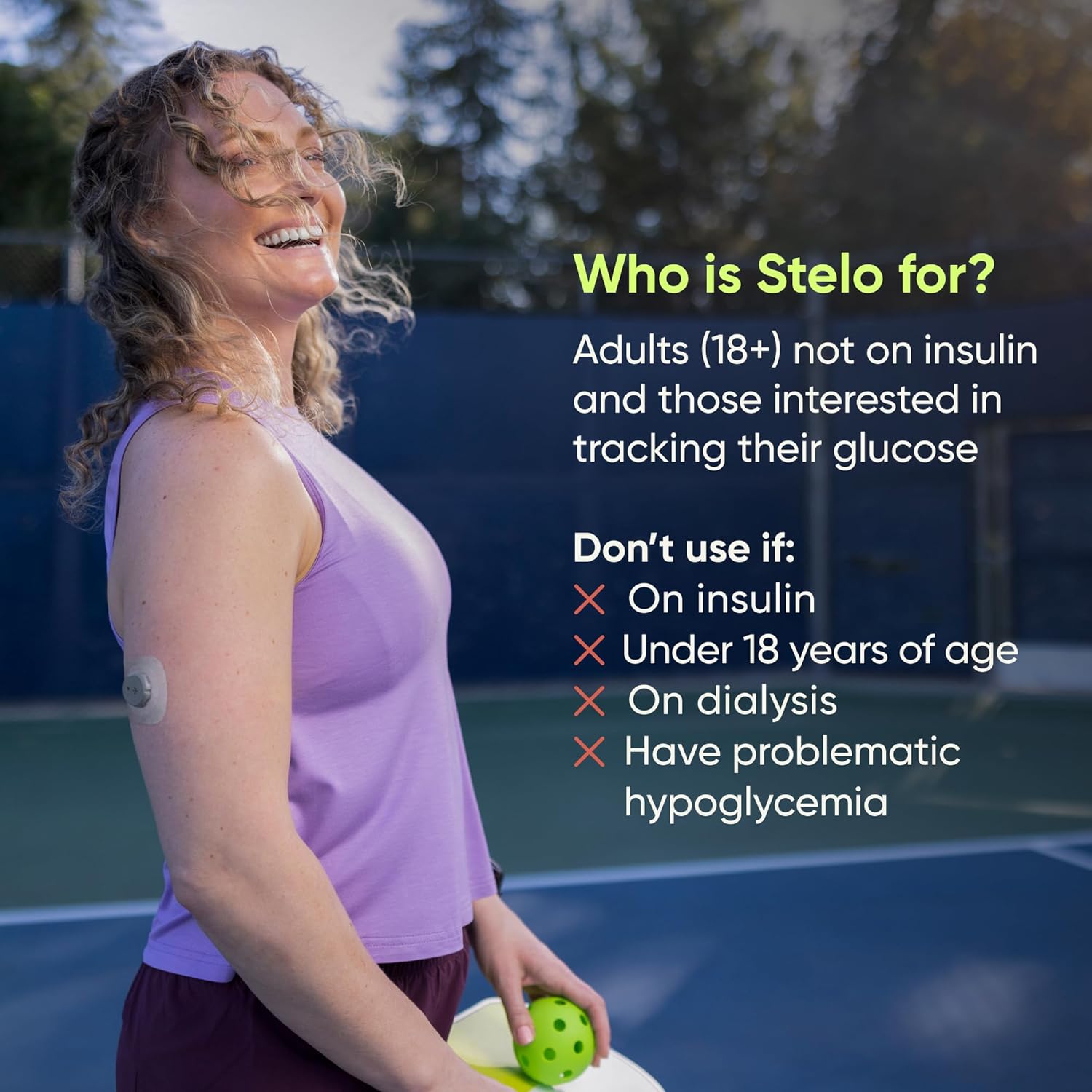
A CGM — short for continuous glucose monitor — is a small wearable sensor, usually worn on the back of your arm, that reads your blood sugar automatically every few minutes and sends the data to your phone. Instead of pricking your finger multiple times a day, you glance at an app. That’s the promise. The reality, as thousands of user reviews make clear, is that the promise occasionally breaks down: sensors go quiet mid-session, apps refuse to open, and readings vanish at exactly the wrong moment. Whether you’re managing Type 2 diabetes, investigating prediabetes, or wearing a CGM purely for metabolic awareness, a failed sensor isn’t a minor inconvenience — it’s a gap in the data you’re relying on. This guide breaks down the most common failure modes for two of the newest over-the-counter CGMs — Dexcom Stelo and Abbott Lingo — attributes the patterns honestly to the reviewers who reported them, and gives you a clear decision framework for each scenario.
| EDITOR'S PICKStelo Glucose Biosensor & App b… | Mid-tierLingo Continuous Glucose Monito… | Budget pickAccu-Chek Guide Diabetes Meter… | |
|---|---|---|---|
| Type | CGM biosensor | CGM biosensor | Blood glucose meter |
| Sensor life | Up to 15 days each | Up to 14 days | — |
| Pack size | 2 sensors | 1 sensor | — |
| Phone app | ✓ | ✓ | — |
| Real-time data | ✓ | ✓ | — |
| Brand | Dexcom | Abbott | Accu-Chek |
| Price | $99.00 | $43.96 | $29.99 |
| See on Amazon → | See on Amazon → | See on Amazon → |
The Two Failure Patterns That Dominate Reviews
Before you troubleshoot anything, it helps to know that CGM failures cluster into two very different categories. One is hardware-side: the sensor itself stops working. The other is software-side: the app can’t talk to the sensor, even when the sensor is perfectly fine. Mixing these up leads to the wrong fix.
Hardware Failure: The Mid-Session Signal Drop (Stelo)
Reviews for the Dexcom Stelo are sharply split along a very specific fault line. Five-star reviewers — across aggregated product reviews analyzed for this article — consistently describe smooth, uneventful experiences. One-star reviewers describe a consistent nightmare: the sensor fails mid-session, often around day 8 of a 15-day wear period. That’s the halfway point. You’ve already passed the first-day calibration window when accuracy is still settling in, and you’re nowhere near the end of the approved wear life. You’re just — dropped.
Reviewers in this camp describe the Stelo app showing a “Signal Loss” notification that doesn’t resolve after the standard wait period. Some report the app eventually displaying an outright sensor error code requiring them to remove and replace the sensor. The frustration is compounded by what multiple reviewers describe as “horrendous” customer service — long hold times, unclear replacement timelines, and representatives who, reviewers say, don’t seem empowered to make fast decisions on warranty replacements.
The contrast with five-star owners is instructive, not dismissive. Reviewers who had positive experiences consistently mention two things: they read the documentation first, and they understood the support model going in. The Stelo is an over-the-counter product, not a prescription CGM with the same manufacturer support infrastructure as the Dexcom G7 Pro. That distinction matters when something goes wrong at 11 p.m. on a Saturday.
What the documentation says: Per the Dexcom Stelo CGM System User Guide published by Dexcom, signal loss is often caused by the phone being too far from the sensor (beyond approximately 20 feet), a dead or low phone battery, or Bluetooth interference. The guide recommends keeping the phone within arm’s reach and restarting both the app and Bluetooth before concluding the sensor has failed. It does not, however, promise that all signal-loss events are user-correctable — hardware manufacturing defects exist in any mass-market device.
Software Failure: The Android Compatibility Wall (Lingo)
Lingo’s lowest-rated reviews cluster around a different problem entirely: the app simply does not work on certain Android phones, with Samsung devices appearing most frequently in these complaints. Reviewers describe installing the app, completing setup, and then being greeted with an app that either crashes, fails to pair, or displays persistent Bluetooth errors — regardless of how many times they reinstall, restart, or follow troubleshooting steps.
This is a meaningful distinction from a sensor failure. If the app can’t connect on your specific phone, the hardware is irrelevant. A perfectly functional sensor on your arm is producing data that never reaches you.
Abbott has posted a device compatibility list for the Lingo system. Per the Abbott Lingo System User Manual (2024–2025 edition), the app requires a specific minimum OS version and Bluetooth 4.2 or higher. The compatibility list is updated periodically, but reviewers note it is not always current with recent Samsung Galaxy model releases, creating a lag window where users are purchasing hardware for phones that aren’t yet supported.
At the same time, the review picture isn’t uniformly negative. A nurse reviewer, cited across multiple retail platforms, explicitly urges readers to look past the negative reviews, framing Lingo as a clinically meaningful tool for catching early metabolic problems before they escalate. She describes using it with patients who would otherwise receive no glucose monitoring at all between annual lab draws. A separate five-star owner — someone who is not diabetic — reports the system worked exactly as intended for general metabolic awareness, with no pairing issues.
The pattern here is straightforward: if you’re on a supported phone, Lingo reviewers are satisfied. If you’re on an unsupported phone, the product functionally doesn’t exist for you.
By the Numbers
| Device | Sensor Wear Life | Top Failure Mode (Reviews) | App Compatibility Flag |
|---|---|---|---|
| Dexcom Stelo | 15 days | Signal loss ~day 8 | iOS + Android (check list) |
| Abbott Lingo | 14 days | App won’t pair on Samsung | iOS + select Android only |
| Abbott FreeStyle Libre 3 | 14 days | Adhesion at edges | Broad Android support |
| Dexcom G7 Pro | 10 days + 12-hr grace | Sensor warmup errors | Broad Android + receiver |
Review patterns sourced from aggregated retail and community feedback. Compatibility details per manufacturer user guides as of May 2026.
What to Do Before You Call Customer Service
Most CGM troubleshooting guides are written by people who have never waited on hold for 45 minutes while a sensor counts down its remaining life. This sequence is built for efficiency.
Step 1 — Check the obvious Bluetooth variables first. Per both the Dexcom Stelo User Guide and the Abbott Lingo User Manual, Bluetooth interference is the leading fixable cause of signal loss. Toggle Bluetooth off and back on (don’t just restart the app — toggle the radio). Move your phone to within 3 feet of the sensor. Check that battery-saver or low-power mode isn’t throttling Bluetooth in the background. On Samsung devices specifically, reviewers note that “Battery Optimization” settings in Android frequently put CGM apps to sleep, interrupting the connection.
Step 2 — Check app permissions and background refresh. Both apps require Location Services (for Bluetooth scanning on iOS) and Background App Refresh to run continuously. On iOS, navigate to Settings → Privacy → Location Services → [your CGM app] → set to “Always.” On Android, check Settings → Apps → [your CGM app] → Battery → set to “Unrestricted.” Reviewers who completed these steps before their first session report far fewer drop events.
Step 3 — Confirm your phone model is on the compatibility list. Do this before removing the sensor. Both Dexcom and Abbott maintain live compatibility lists on their support pages. If your phone isn’t listed, the fastest path isn’t customer service — it’s accessing the app on a supported device (a family member’s iPhone, for instance) before your current sensor session expires.
Step 4 — Document everything before you call. Replacement sensor claims require the lot number (on the sensor packaging), the date of activation, the approximate time of failure, and a screenshot of the error message if possible. Reviewers who had their lot numbers ready reported significantly faster resolution times with Dexcom customer support than those who called without documentation.
Getting a Replacement Sensor: What Actually Happens
For prescription CGMs like the Dexcom G7 Pro and Abbott FreeStyle Libre 3, the warranty replacement process is well-established. Per Dexcom’s published support documentation, a sensor that fails within its approved wear window is eligible for a replacement when reported to customer service with the lot number and activation date. Abbott’s process for FreeStyle Libre 3 is similar, with replacements typically processed within 3–5 business days.
For the Stelo, the process mirrors this, but reviewers describe inconsistent execution. The product is OTC, and the support pathway is the same Dexcom 1-800 line — the same line handling prescription customers. During high-volume periods, OTC customers report longer waits and less consistent outcomes. The five-star reviewers who had smooth replacement experiences consistently mention being polite, having documentation ready, and following up in writing via the app’s built-in support chat rather than relying solely on phone calls.
For Lingo, the app-compatibility problem complicates replacements. If you can’t get the app to pair, you may have difficulty demonstrating that the sensor itself failed rather than the phone configuration. Abbott’s support team can, per the user manual, walk through a pairing protocol with you — but reviewers in the Samsung-failure cluster report that this process sometimes ends without resolution because the phone simply isn’t supported.
The clearest decision rule: if the app won’t pair at all, resolve phone compatibility before activating the sensor. Once a sensor is activated, the warranty clock is running.
Accuracy and When to Use a Finger Stick
Neither Stelo nor Lingo is intended to replace finger-stick testing in situations requiring treatment decisions. The American Diabetes Association’s Standards of Care in Diabetes — 2025 edition notes that CGM readings reflect interstitial fluid glucose, which lags behind blood glucose by approximately 5–15 minutes during periods of rapid change. Healthline’s overview of CGM accuracy notes that all currently approved CGMs have a MARD (mean absolute relative difference) that’s acceptable for trend monitoring but introduces enough variance to make finger sticks advisable before correcting with insulin.
This is especially relevant for Stelo and Lingo, both of which are designed for non-insulin-using adults managing Type 2 or prediabetes. The FDA’s De Novo authorization for the Abbott Lingo system confirms it is not indicated for insulin-dosing decisions. If you’re managing insulin and need to decide on a correction dose, a finger stick is the appropriate standard — regardless of what the sensor says.
Frequently Asked Questions
1. Why does my Stelo sensor show “Signal Loss” and what should I do first? Signal loss usually means the phone and sensor lost their Bluetooth connection. Start by toggling Bluetooth off and on, moving your phone within 3 feet of the sensor, and disabling any battery-optimization settings that may be putting the app to sleep. If the loss persists for more than 30 minutes after those steps, document your sensor lot number and contact Dexcom support — mid-session hardware failures do occur and are eligible for replacement.
2. Does the Lingo CGM app work on Samsung Android phones? Not reliably, based on review patterns. Reviewers on multiple platforms describe persistent pairing failures on Samsung Galaxy devices. Abbott maintains a compatibility list in the Lingo User Manual and on its support site — check your specific model and Android OS version before activating a sensor. iOS users report far fewer app-level issues.
3. How do I get a replacement sensor if mine stops working early? Contact the manufacturer’s support line with your sensor lot number, activation date, and a screenshot of any error message. Both Dexcom and Abbott have replacement policies for sensors that fail within their approved wear window. Reviewers report faster outcomes when calling with documentation already in hand rather than calling first and searching for the information during the call.
4. Is Stelo or Lingo accurate enough to replace finger-stick testing? For trend monitoring and general metabolic awareness — yes, they’re useful. For insulin-dosing decisions — no. Neither device is approved for that purpose. The ADA’s 2025 Standards of Care recommend confirming with a finger stick any time a CGM reading seems inconsistent with how you feel, particularly during rapid glucose changes.
5. What phone settings do I need to check before setting up a CGM app? On iOS: Location Services → Always, Background App Refresh → On, Notifications → On. On Android: Battery Optimization → Unrestricted, Location → Always Allow, and specifically on Samsung: disable “Adaptive Battery” restrictions for the CGM app. These settings take five minutes to confirm and prevent the majority of preventable connection failures reviewers describe.
6. What does Dexcom/Abbott customer service actually do when a sensor fails mid-session? When a sensor failure is confirmed, both manufacturers will typically ship a replacement sensor. The timeline varies — reviewers report 3–7 business days for Dexcom Stelo replacements and similar windows for Abbott products. Neither company provides a same-day solution, which means your practical fallback during the wait is finger-stick testing. Having a backup glucometer and strips available is worth planning for, particularly if you’re in the first few months of CGM use.
The decision rule, stated plainly: If you’re on an iPhone and reading the documentation is something you’ll actually do, Stelo’s mid-session failure rate is a manageable risk with a clear replacement path. If you’re on a Samsung Android, do not activate a Lingo sensor until you have confirmed your exact model and OS version appear on Abbott’s current compatibility list — the hardware cannot help you if the app won’t run.